
How to Add Photos from a Google Photos Link to Your Missionary's Book
Download photos your missionary shared through a Google Photos link, then upload them to the right chapter in your book.
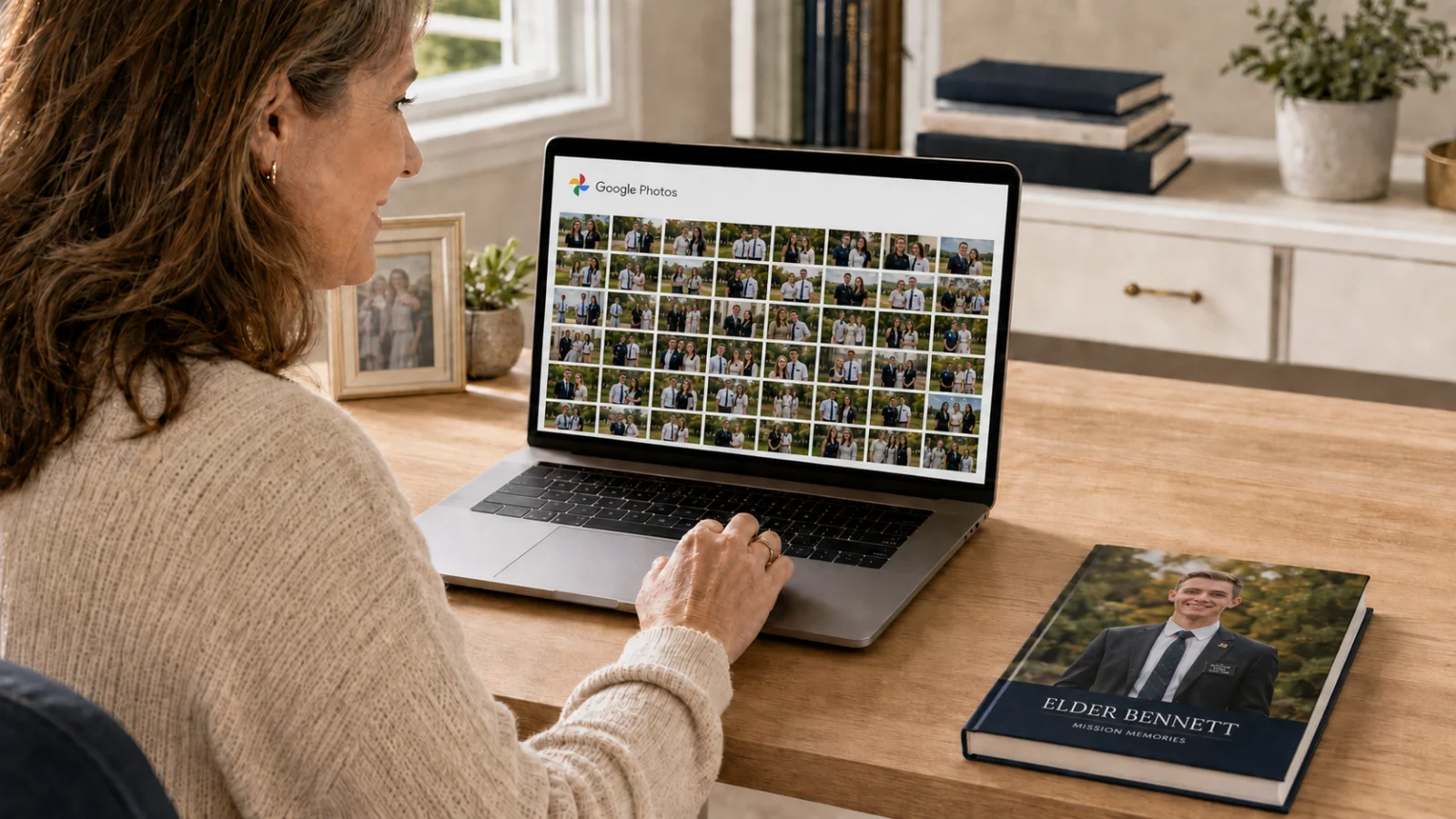
If your missionary shared photos through a Google Photos link instead of attaching them directly to their email, you will need to add those photos yourself. Google restricts how outside services can pull photos from shared links, so this step cannot be automated. It takes a few extra minutes, but the photos will end up right where they belong.
Before you start
Have the Google Photos link from your missionary's email open and ready, and know which email or week the photos belong to. You will also need to be signed into your account, since you will be uploading through the Storied story editor.
Steps
Open the Google Photos link from your missionary's email in a browser.
Select and download the photos you want to keep. Save them somewhere you can find them again, like your desktop or a dedicated folder.
Sign in to your account and open the Storied story editor by clicking on your missionary and clicking the "View & edit on Storied" button.
Find the email or chapter the photos belong to, click the three dots on the far right of the story, and select Edit Story.
Upload the downloaded photos to that chapter.
Move the two photos you want featured in the printed book to the top of that chapter's photo collection. The rest will still be reachable through that chapter's QR code.
What happens next
Once uploaded, the photos are attached to the correct week and stay there through preview, editing, and printing. The two photos at the top of the collection print directly on the page, and anyone reading the finished book can scan the QR code next to that chapter to view the rest.
If it does not work
The link has stopped working or shows an error. Google Photos links can expire or be changed by the person who created them. Ask your missionary to generate a new link or, better yet, attach the photos directly to a future email instead of sharing a link. If you already saved the photos to your own Google Photos library earlier, check there first before asking your missionary to resend anything.
You are not sure which chapter the photos belong to. Check the date the photos were taken or the date of the email that included the link, then match that to the corresponding week in your project.
Tip for next time: see How to Get Your Missionary's Photos Automatically Instead of Through a Link to stop this from happening again.
Related reading
How to Add Google Photos to Your My Missionary Book
Questions?
Contact us at customerservice@mymissionarybook.com or through our contact form.
Related articles
How to Get Your Missionary's Photos Automatically Instead of Through a Link
Ask your missionary to attach photos directly to their weekly email so every photo is captured with no extra steps.
2 min read
I Missed the Deadline and My Missionary's Email Is Gone. Can I Still Make a Book?
Even if your missionary's email account is already gone, you can still build a meaningful keepsake book from what others saved.
2 min readStill need help?
Can't find what you're looking for? Our team is happy to help — we usually reply within one business day.
Contact support