
How to Add Google Photos to Your My Missionary Book
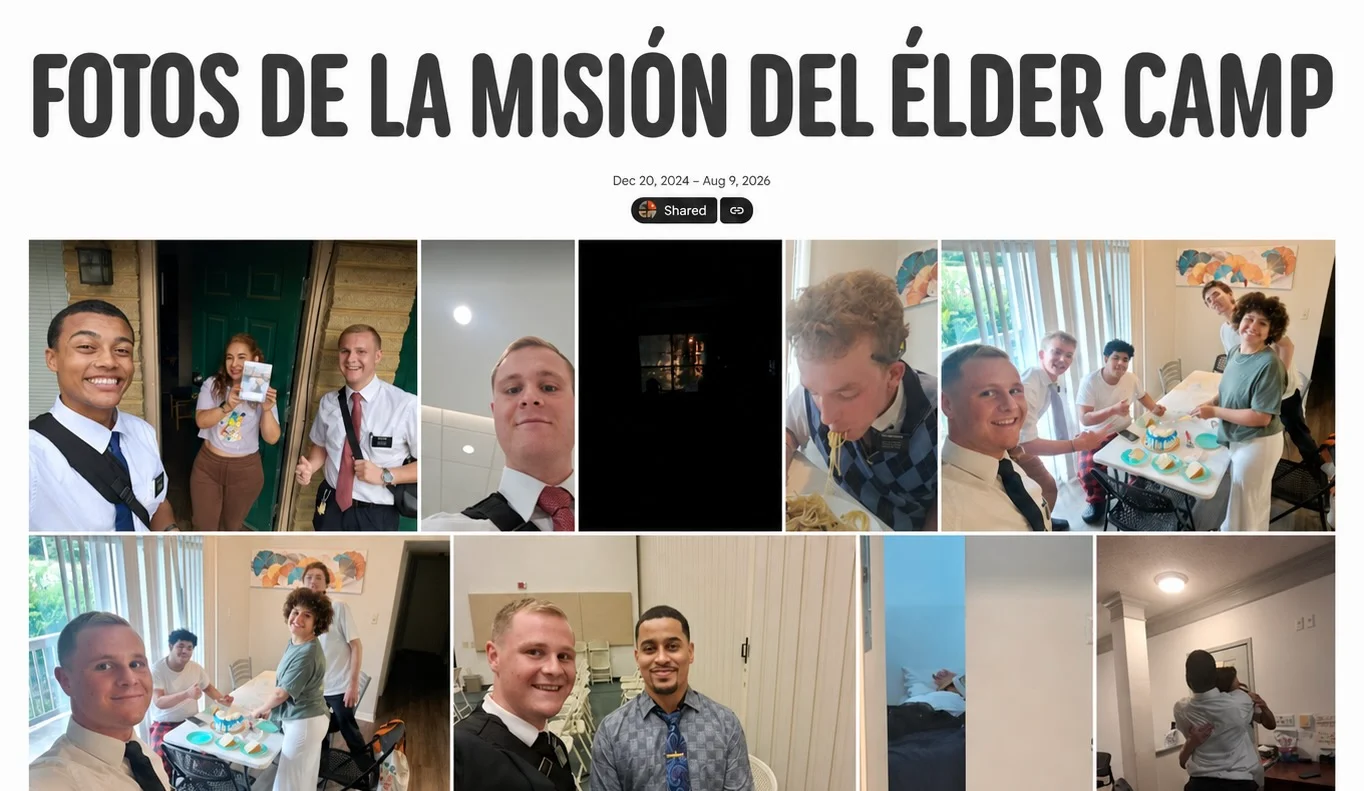
Your missionary sent a Google Photos link instead of attachments? Here is how to download those photos and add them to the right week in your Storied book.
My Missionary Book cannot import photos from a Google Photos link automatically, because Google removed broad third-party access to shared albums in March 2025. The easiest fix is to have your missionary attach photos directly to the weekly email, which imports them automatically. When you only have a link, open the shared album, choose Download all or select the pictures you want, then upload the files to that email in your Storied book editor. The first two photos appear in the printed book, and a QR code gives readers the rest.
Your missionary’s weekly email may contain plenty of stories but only one Google Photos link. The pictures are still part of the story. They simply need one additional step before they can appear in a My Missionary Book.
The easiest method is for your missionary to attach photos directly to the weekly email. When that is not possible, you can download the pictures from Google Photos and upload them to the corresponding email in your Storied book editor.
This guide explains each option, including how to save a shared album, download an entire album, use Google Takeout, and create an ongoing backup.
The Easiest Option: Attach Photos to the Weekly Email
Whenever possible, ask your missionary to attach their favorite photos directly to their weekly email instead of, or in addition to, sharing a Google Photos link.
Photos attached directly to an email sent to your My Missionary Book address are imported automatically. My Missionary Book currently features the top two photos from each week in the printed book. A QR code also appears with the email, allowing readers to view the rest of the photos associated with that week.
This keeps the printed layout clean while preserving access to the complete collection.
The simplest routine is:
Your missionary writes their weekly email.
They attach the photos they want associated with that week.
They send the email to their regular family list and their unique My Missionary Book address.
The email and attached photos are added automatically.
The top two photos appear in the book, and the QR code provides access to the rest.
The missionary does not need to limit the email to only two photos. They can attach the full group they want preserved. My Missionary Book will display the two featured photos in print while keeping the remaining photos available through the QR code.
For more ideas about building a complete mission record, read Why Every Missionary Family Should Keep a Mission Journal.
What If the Email Only Contains a Google Photos Link?
Many missionaries upload their pictures to Google Photos and place a shared-album link at the bottom of their email. My Missionary Book can preserve the link as part of the email, but a link is not the same as an attached image. The actual photo files must be downloaded before they can be added to the week’s photo collection.
To add those pictures:
Open the Google Photos link from your missionary’s email.
Download the photos you want to preserve.
Sign in to your My Missionary Book account and open the Storied book editor.
Find the email or chapter where the pictures belong.
Upload the downloaded photo files directly to that email.
Review the photos and make sure the two you want featured are placed first.
The first two photos will be displayed in the printed book. Readers can scan the QR code to view the rest of the photos associated with that email.
The following Google Photos options can make the downloading step easier.
Option 1: Download the Entire Google Photos Album
This is usually the best approach when your missionary shares a separate album for each week.
On a computer:
Open the shared Google Photos album.
Sign in to Google if prompted.
Open the three-dot More menu in the upper-right corner.
Select Download all.
Google Photos will prepare a ZIP file containing the album’s photos and videos.
Open the downloaded ZIP file to extract its contents.
Upload the desired photos to the matching email in your Storied book editor.
Place the two photos you want featured at the top.
You do not necessarily need to upload every downloaded file. You can leave out duplicates, screenshots, blurry images, or pictures you do not want associated with the book. However, you can upload more than two photos. The additional images will remain available through the QR code.
If Download all does not appear, try saving the album to your own Google Photos account first or select and download the pictures individually.
Option 2: Save the Shared Photos to Your Own Google Photos Account
When viewing a shared album, Google Photos may display a Save photos button near the top of the album. Its icon may resemble a cloud with a downward arrow.
Selecting it saves the album’s photos to your own Google Photos library. According to Google’s shared-photo instructions, you can save an individual picture or save all the photos and videos in a shared album.
This is useful because it creates a copy in an account your family controls. It also makes the pictures easier to find later if the original shared link stops working.
Be aware of an important distinction:
Save photos adds the actual pictures to your library.
Show in Albums adds the shared album to your Albums view but does not necessarily save its contents to your library.
Saving photos to your Google Photos library does not add them automatically to My Missionary Book. You will still need to download the selected files and upload them to the appropriate email in Storied.
Option 3: Download Selected Photos
You may not want every picture in a large album. In that case, download only the images you want preserved with the email.
On a computer:
Open the shared album.
Select the photos you want.
Open the three-dot More menu.
Choose Download.
Extract the files if Google packages them in a ZIP file.
Upload them to the matching email in Storied.
Arrange the two photos you want featured at the top.
As you make your selections, look for photos that help answer questions such as:
Who was part of this week’s story?
What did the area or apartment look like?
Which pictures capture the main experience described in the email?
Are there photos of companions, members, service projects, baptisms, transfers, or meaningful places?
Will these photos still be interesting to the missionary and their family years from now?
Remember that the printed page does not need to hold the entire photo collection. Two photos can complement the written story, while the QR code gives readers access to everything else from that week.
Option 4: Use Google Takeout for a Large Archive
Google Takeout allows an account owner to export a large collection of Google Photos data.
Takeout is most useful when:
Your missionary is approaching the end of their mission.
You need to preserve a large photo library.
You are trying to recover photos from earlier months.
You want a separate family archive in addition to the finished book.
The basic process is:
Sign in to the Google Account that owns the photos.
Visit Google Takeout.
Deselect products you do not need.
Select Google Photos.
Choose the available albums you want to export.
Request the export and wait for Google to prepare it.
Download and extract the resulting archive.
Upload the appropriate photos to their corresponding emails in Storied.
Takeout is better suited to a large backup than to adding one week of photos to a book. Google does not always allow exports to be limited to a precise date range, and an export may contain several ZIP files and separate JSON metadata files. Access may also be restricted on organization-managed accounts, including some missionary accounts.
If the missionary’s account may eventually be closed, do not wait until the final day to attempt an export. Our guide, How to Preserve Missionary Photos and Emails Before They’re Lost, explains why early preservation matters.
Optional: Set Up Google Photos Partner Sharing
For families that want an ongoing backup, Google Photos offers Partner Sharing.
A missionary can share photos with one other Google Account, potentially including all photos taken after a selected date. The receiving family member can then save those photos automatically to their own Google Photos library.
This can reduce the risk of losing an entire mission’s photo collection, but it requires careful consideration:
Partner Sharing may share far more than the missionary intends.
It can include personal screenshots or unrelated images.
The missionary should understand and approve what is being shared.
Some settings may not be available on a managed missionary account.
The photos must still be downloaded and uploaded to Storied before they can be associated with an email.
For most families, a separate weekly shared album provides more privacy and control than sharing an entire photo library.
Why Doesn’t My Missionary Book Import Every Google Photos Link Automatically?
Google has significantly limited how outside applications can access Google Photos.
In March 2025, Google removed broad third-party access to users’ libraries and shared albums. Its current tools focus on photos created by an application or pictures that a user selects interactively. These changes make it difficult for services such as My Missionary Book to reliably retrieve every photo from a shared Google Photos link.
You can read the technical details in Google’s Photos API update.
We know that downloading and uploading photos creates an extra step for families. We are continuing to explore available options for making this process simpler while respecting Google’s permissions, account security, and the privacy of missionaries and the people in their photos.
Which Method Should You Use?
For most families, the best choice depends on the situation:
Situation | Recommended method |
|---|---|
Your missionary has not sent the email yet | Attach the photos directly to the email |
The email contains a weekly Google Photos album | Use Download all, then upload the photos in Storied |
You want to keep a family copy of the shared photos | Use Save photos to add them to your own Google Photos library |
You only need a few pictures | Select and download the individual photos |
You need to preserve a large or older collection | Use Google Takeout |
You want an ongoing backup throughout the mission | Consider Partner Sharing, with the missionary’s permission |
Two Photos in Print, With the Rest a Scan Away
Photos give context to the words in a missionary’s emails. They preserve the faces of companions, the streets of each area, the apartments, the meals, the service projects, and the people who became part of the missionary’s life.
My Missionary Book is designed to balance those photos with the missionary’s written story. The top two photos from each week appear directly in the book. The QR code lets readers open the rest of the photos associated with that email.
This means families do not have to choose between a readable book and a complete photo collection. The printed pages remain thoughtfully designed, while the additional images remain connected to the week in which they were shared.
The best routine is simple: ask your missionary to attach their photos each week. When they send a Google Photos link instead, download the pictures and add them through the Storied book editor. Then place the two photos you most want to see in the book at the top.
Those extra few minutes preserve details that may otherwise disappear and turn a collection of weekly emails into the complete visual story of a mission.
Frequently Asked Questions
Can My Missionary Book import photos from a Google Photos link?
Not currently. The photo files need to be attached directly to the missionary’s email or downloaded and uploaded to the corresponding email through the Storied book editor.
How many photos appear in the printed book?
My Missionary Book currently displays the top two photos associated with each week’s email. A QR code allows readers to view the rest of the photos for that week.
Can I associate more than two photos with an email?
Yes. The first two photos are featured in the printed book, while the additional photos remain available through the email’s QR code.
How do I choose which two photos appear in the book?
Place the two photos you want featured at the top of the photo collection associated with that email in your Storied story editor before you print the book.
Does saving a shared album add it to My Missionary Book?
No. Saving an album places the photos in your Google Photos account. You must still download the desired files and upload them in Storied.
Can I add photos after the email has already been imported?
Yes. Open the appropriate email in your Storied book editor and upload the photos there so they remain connected to the correct week or chapter.
What if the shared Google Photos link no longer works?
Ask your missionary to create a new link or attach the photos to a future email. If you previously saved the photos to your own Google Photos library, look for them there. This is one reason it is helpful to save or download important photos soon after receiving them.
Start With This Week’s Email
The key takeaways are simple. Photos attached to a weekly email import automatically, while a Google Photos link does not. Download the pictures you want, upload them to the matching email in your Storied book editor, and move the two you most want printed to the top. Everything else stays available behind the QR code.
You do not have to sort an entire mission of photos today. Open your missionary’s most recent email in the Storied book editor and add this week’s pictures. If you have not started a book yet, you can start your missionary’s book and let each weekly email become a chapter automatically.